




take this quick tour of the simplebooklet interface to see how easy it is to create and publish page flipping, shareable booklets across the web.
click NEXT to start learning about each of the tools.
there are three major areas of the app:
the tools along the top help you move from creating to publishing your booklet.
this is where your booklet is placed and you can do all your editing and design.
the tabs to the right of your booklet (along the page border and the screen border) allow you to manage your pages and your content.
there are two ways to start your booklet.
give your booklet a title and choose a size. you'll get a blank page to start adding anything you want.
take an existing pdf file you have and convert it to a booklet. we'll convert each page to a page on your booklet.
your new booklet will appear in your workspace right here.
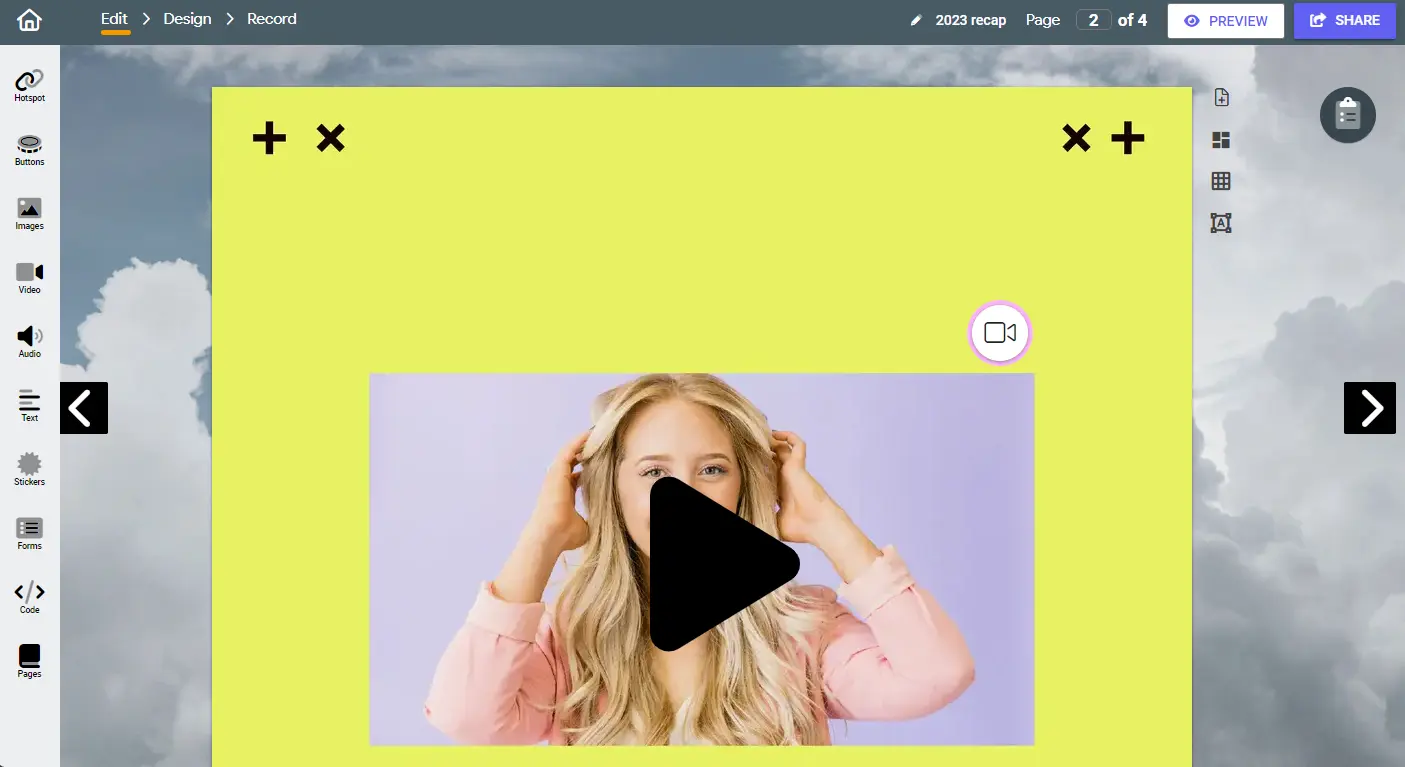
you can start adding your content by clicking on a blank part of the page or the ADD button in the toolbar.
content is divided into two types
basic content is adding text, images, video, contact forms, and clipart.
most of this content can come from your computer or be from the web.
these are features that get added to your page that help generate interaction with your customer. this includes email contact forms, find me map and address buttons, and more. they are very helpful in motivating your customer to take further action and get engaged with your business.
your content will appear on your page, usually in the center. just drag it around to place it where you want.
every piece of content is in a box.
when you hover your mouse over that box, it will become highlighted with a dotted border and four dots at each corner.
you can click and drag your content to a new location on the page.
you can click and drag a corner to make the box bigger or smaller.
clicking on a box will open the edit tab on the right.
you can edit your existing content by clicking the edit button at the top of the toolbar.
you can delete your content, rotate it and make it a hyperlink.
you can also apply styles like shadows using the style tool.
clicking copy will duplicate that content and let you paste it on the same page or on a different page.
these tools affect the way your booklet is presented to your customers.
apply a color, pattern or upload your own image to be the background of the page (if you don't like white).
apply a color or pattern to the surface your booklet is presented upon.
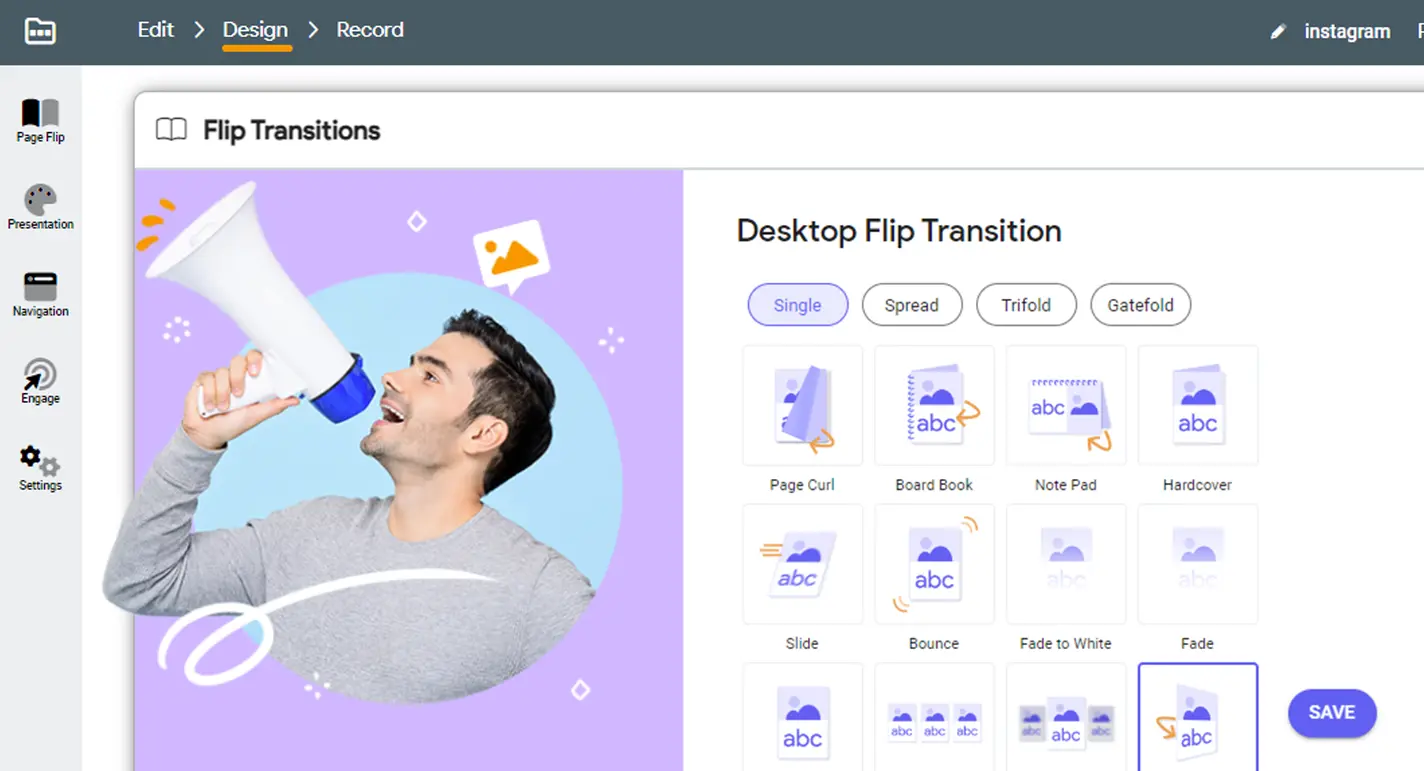
apply page change animations from simple slide to fade to page flip. you can also set this to be automatic or manual.
change the icon that represents the page turn button and set a border around your page.
you can add new pages by clicking the page turn icon or the NEW PAGE tab on the right of your page.
you can delete your page with the DELETE PAGE tab.
you can duplicate the page by clicking the COPY PAGE tab.
you can reorder your pages using the PAGE ORDER tab
we save your booklet automatically as you work on it.
you can also delete or make a duplicate copy of your booklet right here.
when you save or create a booklet, it automatically gets added to your finder.
select a booklet and it will load into the editor for you to work on.
there are two steps to getting ready to publish.
this gives you a chance to confirm the details and description of your booklet are what you want.
this gives you the choice of having ads and a watermark on your booklet or removing them.
once you make your choice, you will go to the publishing dashboard.
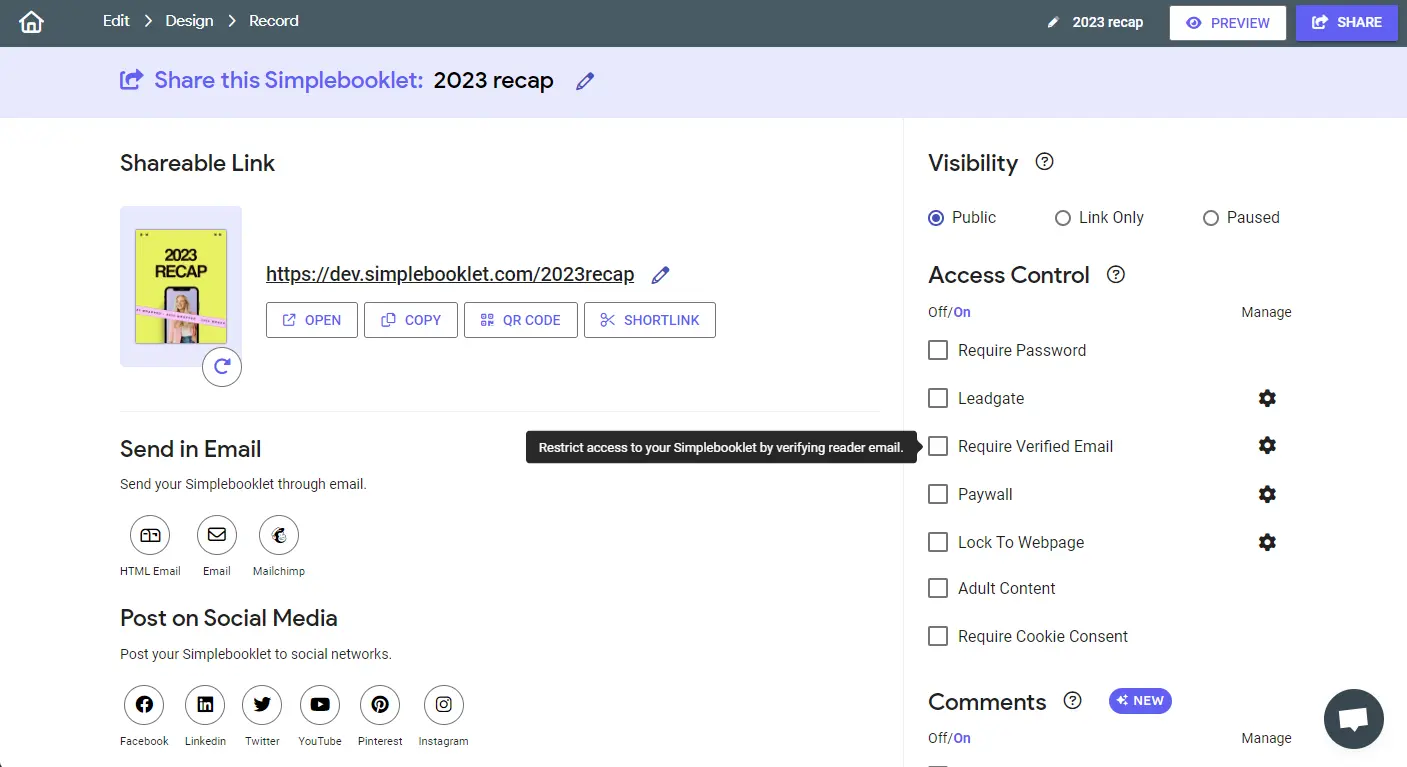
here you have access to all of the ways you can publish your booklet.
this presents you with your booklets unique live page and allows you to provide it with a custom web address, get a short link, and apply a number of additional features like a password or google analytics.
these tools show you your booklets unique landing page or provide code to add it to your website or blog.
this lets you one click add your booklet to a number of social networks.
these shared links lead back to the landing page of your booklet.
send your booklet in a rich email or integrate it with your email subscriber program (like mailchimp).
this provides you with qr codes, a short link, a cover page screenshot, and the ability to make your booklet SEO ready.
you can always find the details of your current booklet right here.
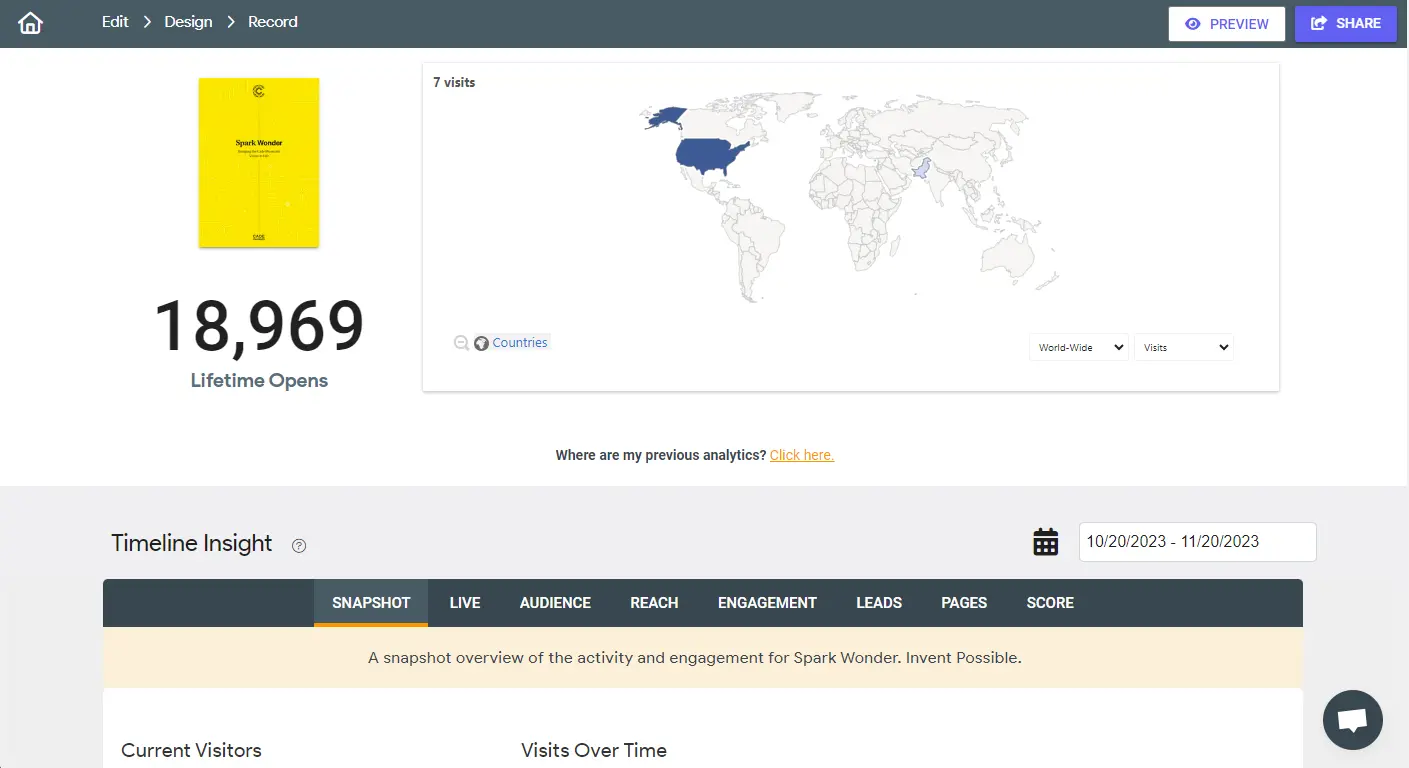
you can also see how effective your booklet has been by looking at its analytics dashboard.
here you can sign out, change your password, or request a new one.
the account button will let you know if you are using a free account or a PRO account.
experiment and have fun. its the easiest way to market your business on the web. You only ever pay for a booklet if you want to remove the advertising and watermark from appearing.
If you ever find yourself stuck, just chat live with us at anytime or click the simplebooklet logo in the top left to access our forums, contact forms, and help files.
Thanks for taking our tour.